
Workspace settings
Settings (sidebar, Administration section) groups the workspace settings in six tabs: General, Members, Billable, Import, Export and Timesheet validation. This page details the General tab. Owners and Admins can change these settings; other roles see them read-only.
Name and timezone
Section titled “Name and timezone”The Workspace settings card holds the workspace name and its timezone. The timezone decides which day a time entry belongs to in the Dashboard and Reports (for example an entry that ends after midnight); it does not change the stored timestamps.
The timezone selector searches the whole IANA timezone list: type a city (“Paris”, “Montreal”…) or an identifier (“Europe/Lisbon”) and pick from the list. The same selector is used when creating a workspace and in the Toggl import.
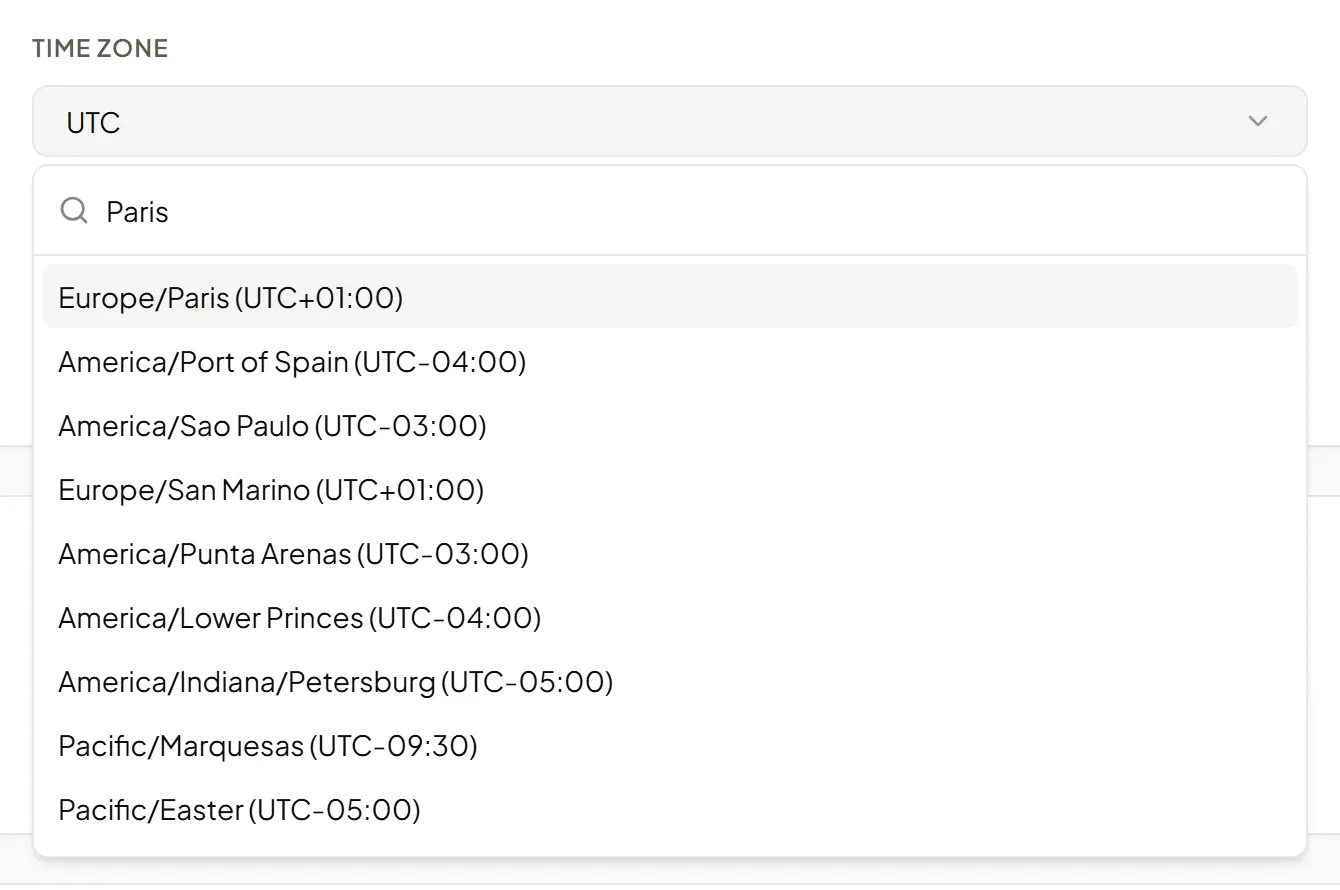
Click Save to apply.
Member permissions
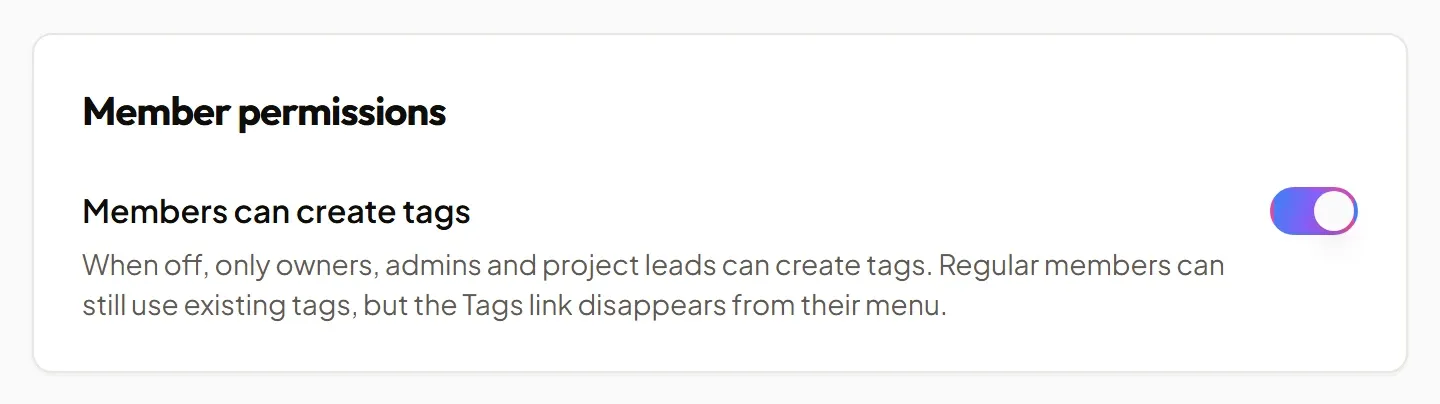
Section titled “Member permissions”The Member permissions card holds the Members can create tags switch. When off, only owners, admins and project leads create tags: regular members can still see and use the existing tags, but the Tags link disappears from their menu.
See also the FAQ Why can’t I create a tag?.
Issuer identity
Section titled “Issuer identity”The Workspace identity card identifies your organization as the issuer of the validation requests sent to clients: it appears on the signed PDF, on the signature page and in the e-mails.
| Field | Content |
|---|---|
| Legal name | Your organization’s legal name. |
| Address | Several lines allowed. |
| Contact email | Address shown on the document. |
| Phone | Optional, 50 characters at most. |
| Company registration number | Optional, 50 characters at most (SIRET in France). |
| VAT number | Optional, 50 characters at most. |
| Logo | PNG, JPEG or WebP, 512 KiB at most. |
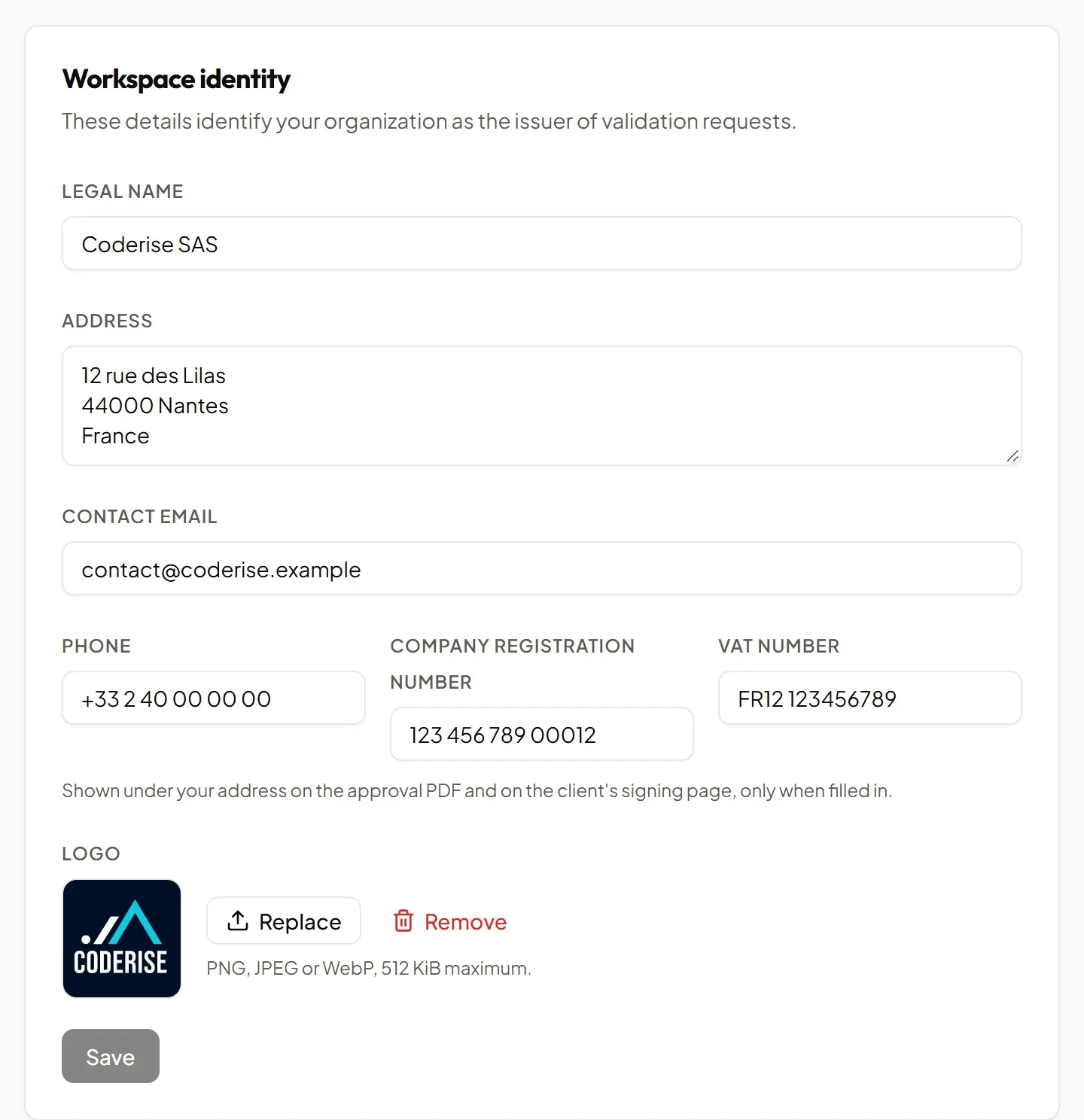
Under the address, the document shows, in this order, the contact e-mail, the phone, “Company no.: …” and “VAT no.: …” — only the fields that are filled in. These details are frozen when a request is sent: changing the form does not change a request already sent; to get them on a document, send a new request.
After a Tickr update, reload the app before saving this form. Saving replaces the whole form: a page opened before the update does not know the phone, registration number and VAT number, and would clear them.
The full client signature flow is described in Timesheet validation.
Other tabs
Section titled “Other tabs”- Members, roles and invitations: Invitations & team.
- Billable: Billing.
- Timesheet validation: activation, self-validation, the counting rule for AI agent time (AI agents).
- Import and Export: Toggl import or Tickr archive, export of the workspace data.