
Personal API keys
An API key lets a program — a script, a BI tool, the MCP connector of an AI assistant… — use Tickr on your behalf through the public API. Every key:
- belongs to you and is valid for a single workspace;
- carries a role that can never exceed yours;
- can expire automatically;
- is shown only once, when it is created.
Every active member of a workspace can create their own keys, whatever their role.
Who can create which kind of key?
Section titled “Who can create which kind of key?”The creation dialog only offers the roles allowed for your role in the selected workspace:
| Your role in the workspace | Key roles offered | Default key role |
|---|---|---|
| Owner, Admin | Admin, Project Lead, Analyst, Workspace User | Workspace User |
| Project Lead | Project Lead, Analyst, Workspace User | Workspace User |
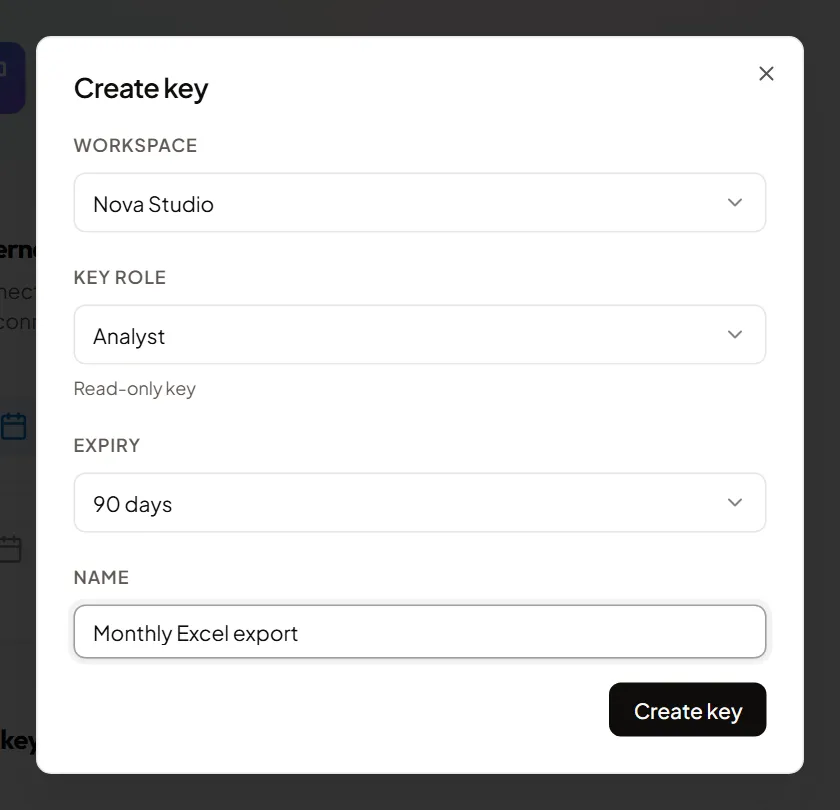
| Analyst | Analyst (read-only) | Analyst |
| Workspace User | Workspace User | Workspace User |
A key can never carry the Owner role: even if it leaks, it cannot delete the workspace or transfer its ownership.
Workspace User is the recommended role for the MCP connector: the key can then record and edit your time, without access to anyone else’s entries.
Create a key
Section titled “Create a key”- In the sidebar, under Manage, open Integrations.
- In the API keys card, click Create key.
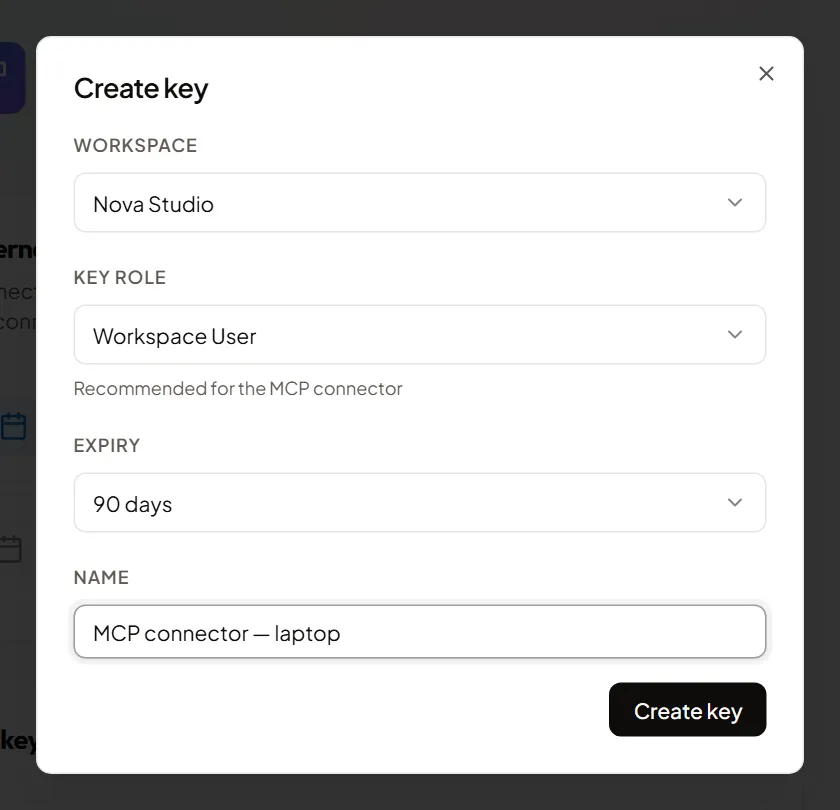
- Fill in the dialog:
- Workspace — the workspace the key will give access to. You can pick any of your workspaces without switching to it.
- Key role — see the table above. A hint appears below the field: Recommended for the MCP connector (Workspace User role) or Read-only key (Analyst role).
- Expiry — 30 days, 90 days (default), 1 year or Never.
- Name — required (200 characters at most). Pick a name that says what the key is for, e.g. “MCP connector — laptop”.
- Click Create key.
If you are an Analyst, only the Analyst role is offered:
Copy the key — only once
Section titled “Copy the key — only once”Right after creation, the dialog shows the full key (it starts with
tkr_live_) with the warning “This key will only be shown once. Copy it
now.”
- Click the copy button to the right of the key (a Copied message confirms).
- Paste it straight into the tool that will use it (or into your secrets manager).
- Close the dialog with Close.
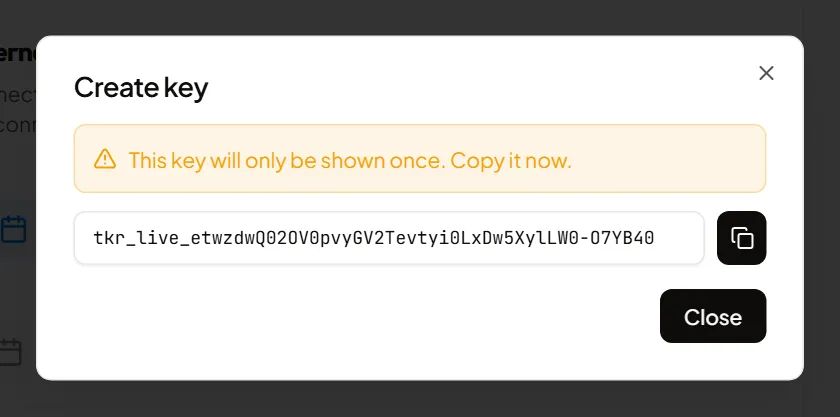
Tickr only stores a fingerprint of the key: nobody can display it again, neither you nor an administrator. If you lost it, revoke it and create a new one.
If your role changed while the dialog was open, Tickr lowers the key’s role to yours and says so below the key: “Effective key role: …”.
The confirmation email
Section titled “The confirmation email”Every time a key is created, its owner receives an email “A new API key was created on your Tickr account” (when email is configured on the instance). It lists the key’s name, workspace, role, creation date and expiry — never the key itself. If you did not create it, follow the link in the email to revoke the key and change your password.
Read the key list
Section titled “Read the key list”The API keys card lists your active keys across all your workspaces. For each key:
- its name, then the workspace and the key’s role;
- Created …;
- Expires …, No expiry, or Expired in red;
- when it was last used (or Never). For keys created from this
release on, it is preceded by the start of the key (for example
tkr_live_ab12cd…), unique to each key: it helps you recognise the key a tool is using. Older keys only show their last use.
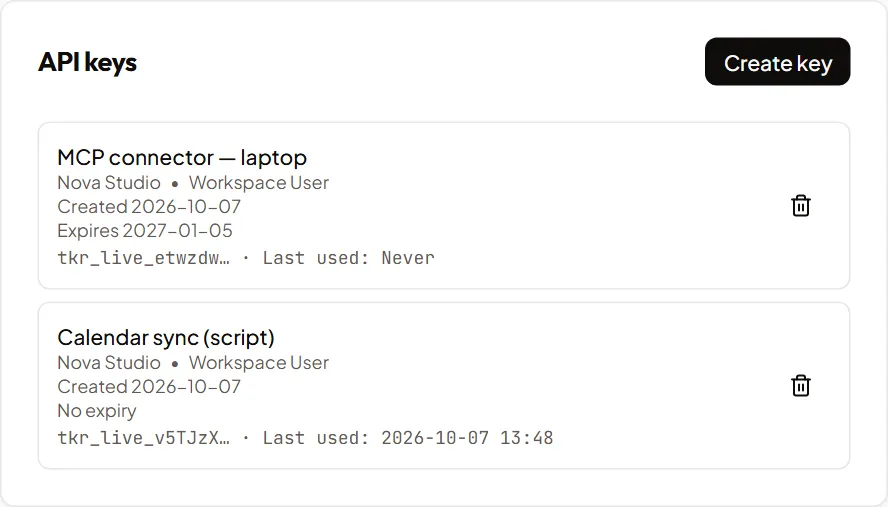
The last-used date is updated at most every 5 minutes: it helps you spot dormant keys, it does not track every call.
An expired key stays in the list (marked Expired) but no longer works and no longer counts towards the 10-key limit. Revoke it to tidy up.
Revoke a key
Section titled “Revoke a key”Click the bin icon (Revoke) at the end of the row. A confirmation dialog “Revoke key “key name”?” opens: it reminds you that apps using this key will stop working immediately and that the action cannot be undone. If you are revoking another member’s key (Owner / Admin view), it also names its holder: “Key owned by member name.”
- Revoke confirms: the key disappears from the list and any program using it is refused on its next call.
- Cancel (or the Escape key) closes the dialog without changing anything.
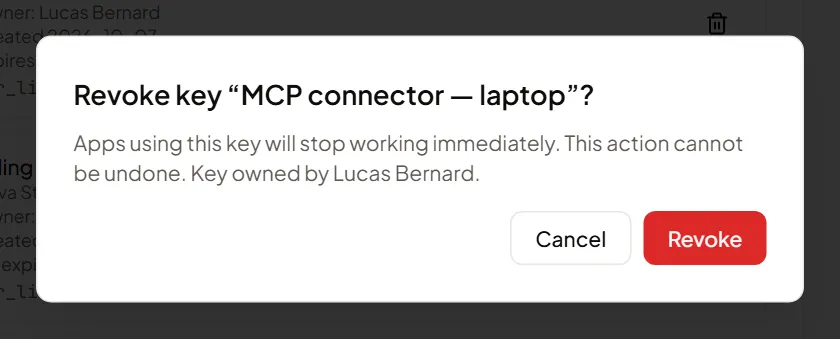
A revoked key cannot be re-enabled.
To replace a key (rotation), create the new one first, update your tool, then revoke the old one.
The Owner and Admin view
Section titled “The Owner and Admin view”If you are Owner or Admin of a workspace, the list also contains the keys of every member of that workspace. Each one shows its holder (Owner: member name) and you can revoke it — for instance when someone leaves or a leak is suspected. You never see the key itself.
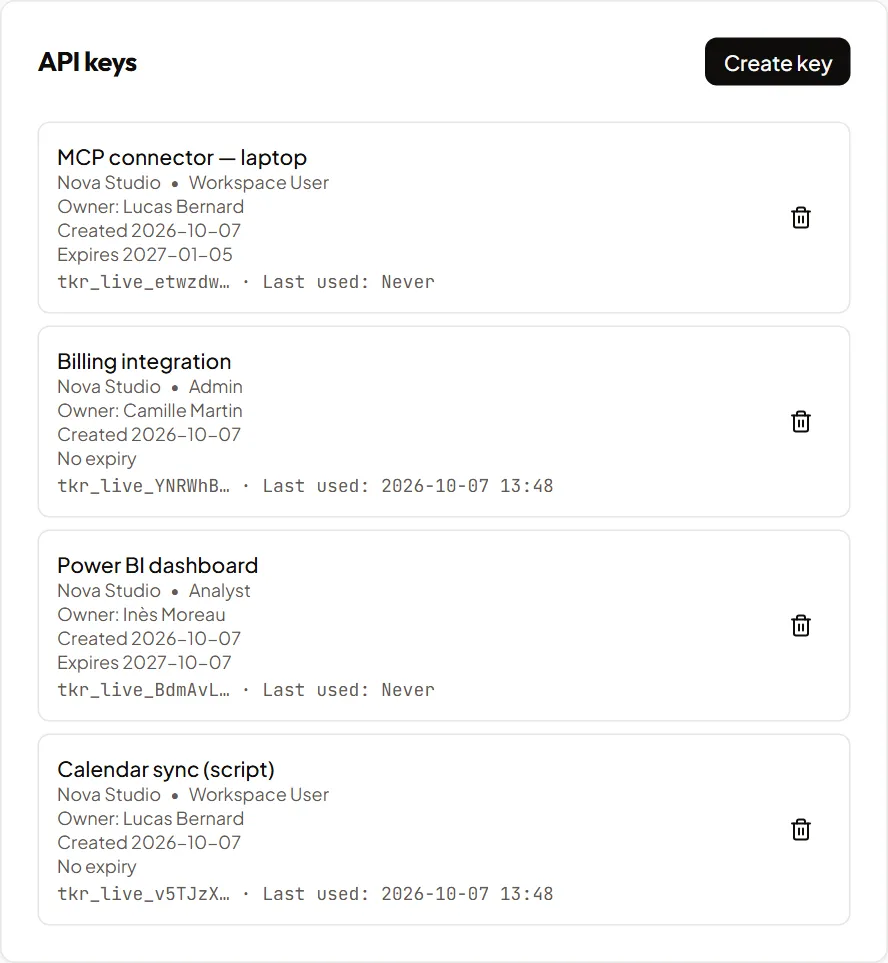
Other roles only see their own keys; other members’ keys are invisible to them.
When does a key stop working?
Section titled “When does a key stop working?”Without any action on your part, a key is disabled when:
- its expiry date is reached;
- you leave the workspace (Leave this workspace) or are removed by an administrator: your keys for that workspace are revoked;
- the workspace is deleted: all its keys are revoked;
- your password is reset through the emailed link — whether you asked for it (Forgot password?) or an administrator sent you a reset link: all your keys, in every workspace, are revoked and all your sessions are signed out. The “Your Tickr password was changed” email says so (“For your security, your N API keys have been revoked; create new ones from the Integrations page.”);
- your role becomes incompatible with the key’s role: an Analyst key stops working if you become a Workspace User, and vice versa. Create a new key then.
On the other hand:
- changing your password from your Profile (Change password) revokes neither your keys nor your sessions;
- a role change (other than the Analyst ↔ Workspace User case above) does not revoke the key, but it never acts beyond your current role: the Admin key of someone demoted to Workspace User acts as a Workspace User key.
Limits and error messages
Section titled “Limits and error messages”| Situation | Message shown |
|---|---|
| You already have 10 active keys (not revoked, not expired) in this workspace | “You have 10 active keys in this workspace. Revoke an unused key first.” |
| More than 10 creation attempts in one hour (all workspaces together, refused attempts included) | “Too many keys created recently. Try again later.” |
| The name contains a line break, a tab… | “The name must not contain control characters (line breaks, tabs…).” |
| The requested role is incompatible with yours (Analyst ↔ Workspace User) | “This key role is not compatible with your role in this workspace.” |
The dialog’s Create key button stays disabled while the name is empty.
Good practices
Section titled “Good practices”- One key per use (a script, a tool, a device) with an explicit name: you can revoke one without breaking the others.
- The lowest role that does the job: Workspace User to record your time, Analyst for read-only access.
- An expiry rather than Never, unless you really need it.
- Never paste a key into a ticket, a chat or a code repository; if it happened, revoke it.
For developers
Section titled “For developers”Header format, error codes, quotas: see the API Authentication page.