
AI agents
When your workspace’s agent plugin is active, AI agents (coding assistants, for example) can record time in Tickr. This page explains how that time appears, how it is counted and how to follow it. If your workspace does not use an agent plugin, nothing changes for you.
What an agent entry is
Section titled “What an agent entry is”An entry can have two agent-related origins:
- Delegated entry (“Agent (delegated)”) — an agent entered human time for you. It always counts as work time.
- Agent session — the agent’s own working time, tracked automatically by the plugin. Depending on the counting rule, it may be included in totals or excluded from them.
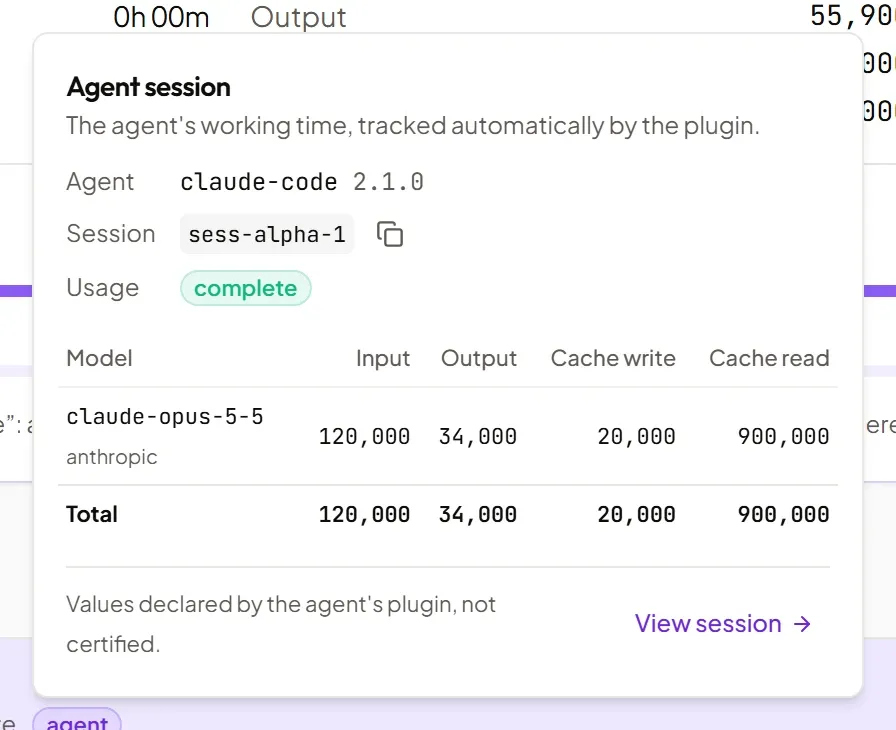
Agent information (name, version, models, tokens) is declared by the plugin on behalf of the API key owner: it is not certified.
Agent sessions are enabled per instance. Until they are enabled on your instance, Tickr hides what only concerns them: the counting rule cards and the Re-apply shortcuts, the merged / split display cards and that choice when sending (the document is then merged), the “active agents” indicator and the Agent session option of the Origin filter. Delegated entries, their badges, the Reports AI agents tab and the AI usage annex stay available.
Recognising an agent entry
Section titled “Recognising an agent entry”-
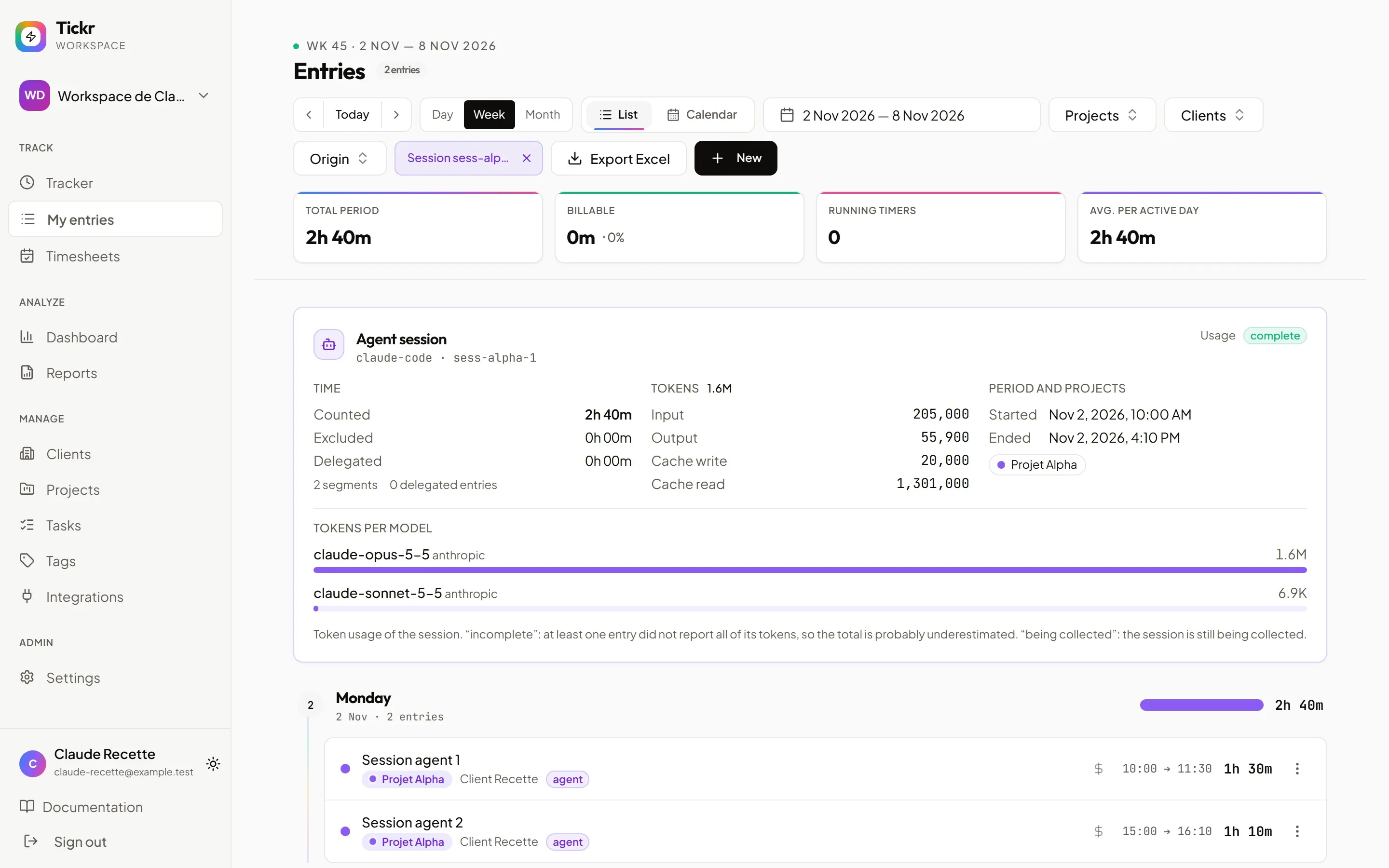
An agent badge marks the entry; its details (origin, agent, token usage and collection quality) open on click.
-
The usage quality tells what the plugin reported: complete, incomplete (at least one entry did not report all its tokens: the total is probably underestimated), being collected (the session is still tracked) or no usage reported (a delegated entry with no session declared no usage).
-
“excluded from totals”: the session time is excluded from totals by the counting rule. The entry keeps its real duration, it is just not added up.
-
An “N active agents” indicator (on the tracker page) lists agents whose activity was recently observed. It is not a guaranteed presence: a long operation without events may not show, and the indicator goes out 10 minutes after the last observed activity.
Filtering by origin
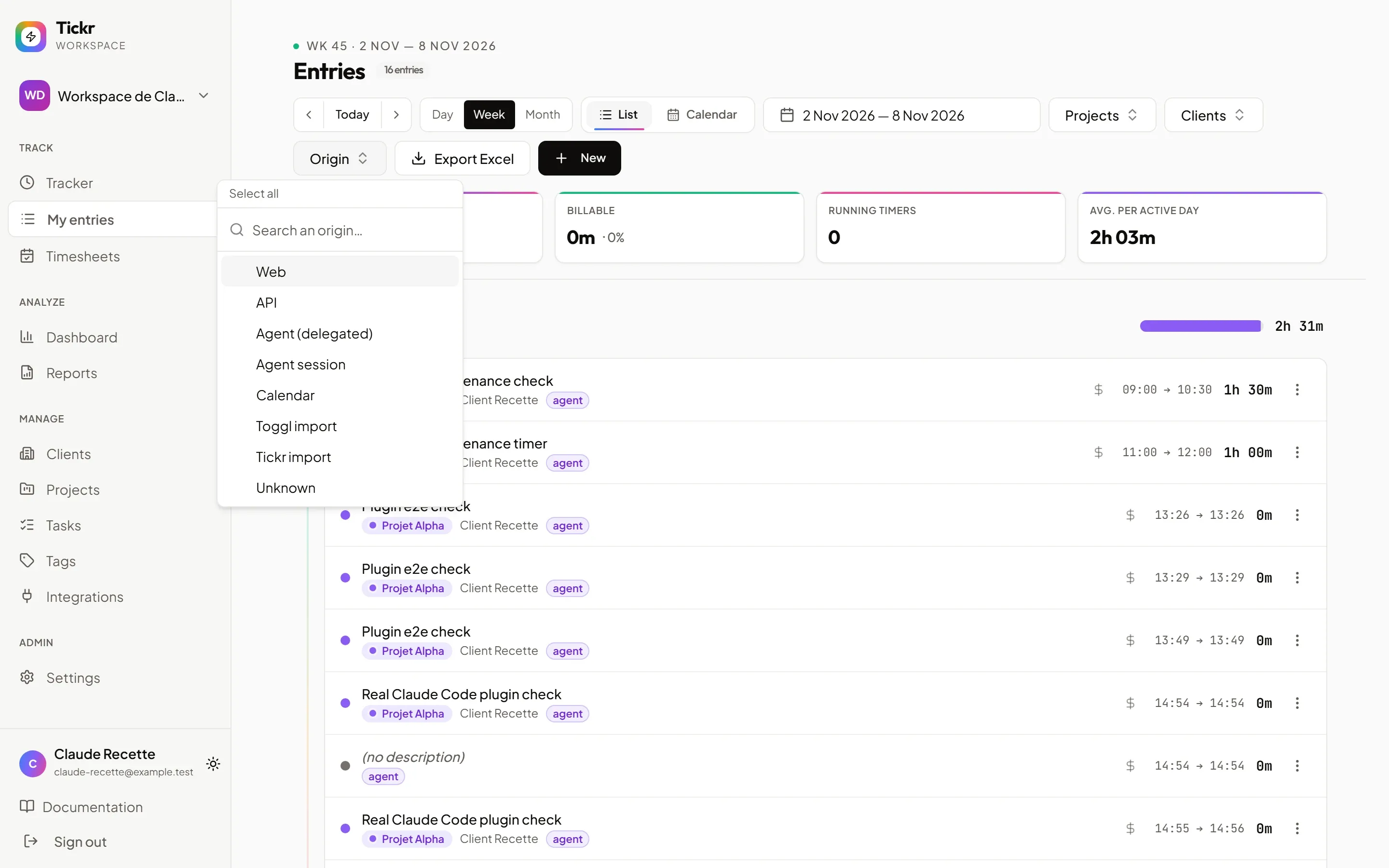
Section titled “Filtering by origin”The Origin filter (Web, API, Agent (delegated), Agent session, Calendar, Toggl import, Tickr import, Unknown — the last one for entries older than origin tracking) is available on the Entries page, the Dashboard and the Reports.
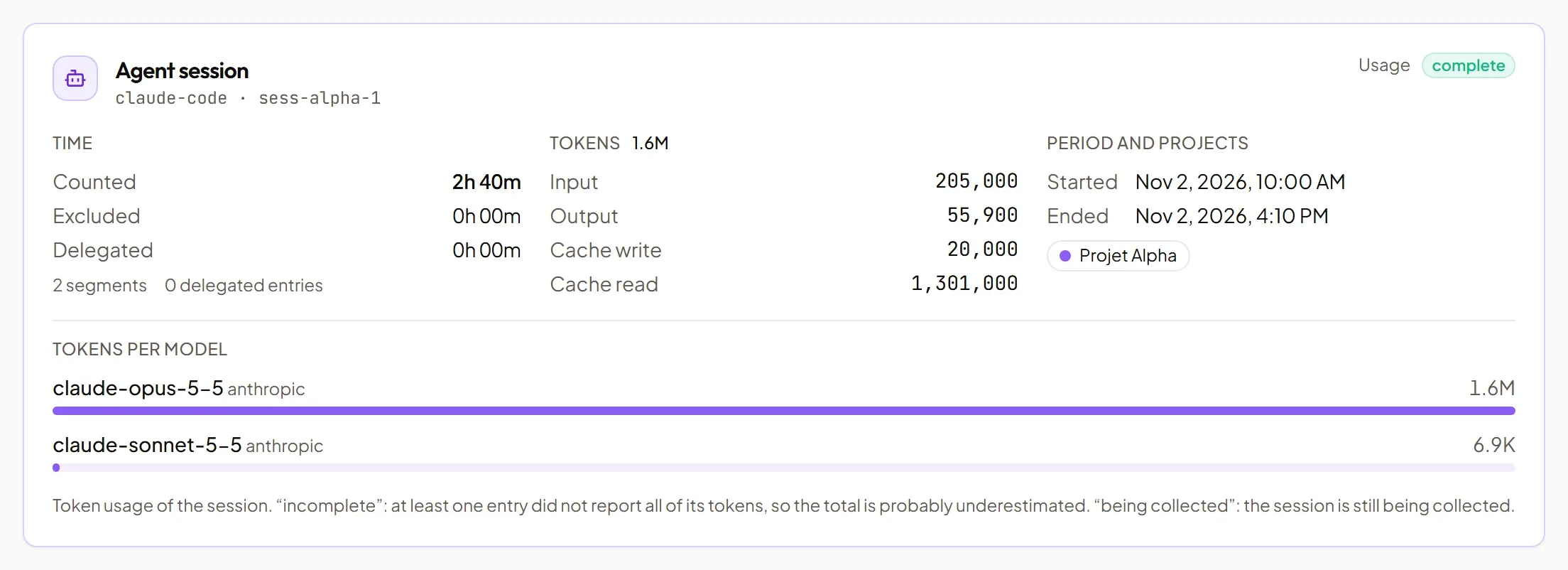
From a report, View the entries opens a session view on the Entries page: it lists that session’s entries without changing your saved filters. The Export button stays enabled in that view and exports that session only. A summary card at the top of this view gives the session’s figures (counted and excluded time, tokens by kind and by model, usage quality, projects, first start and last stop).
Editing an agent session
Section titled “Editing an agent session”Editing an agent session detaches it from its session and finalises it: the agent can no longer extend it. Tickr therefore asks for confirmation before you edit or move it:
- in the weekly grid (once per entry), in the calendars, in the edit sheet or with the billable toggle;
- if the edit changes the project, the confirmation states that counting will follow the new project’s rule.
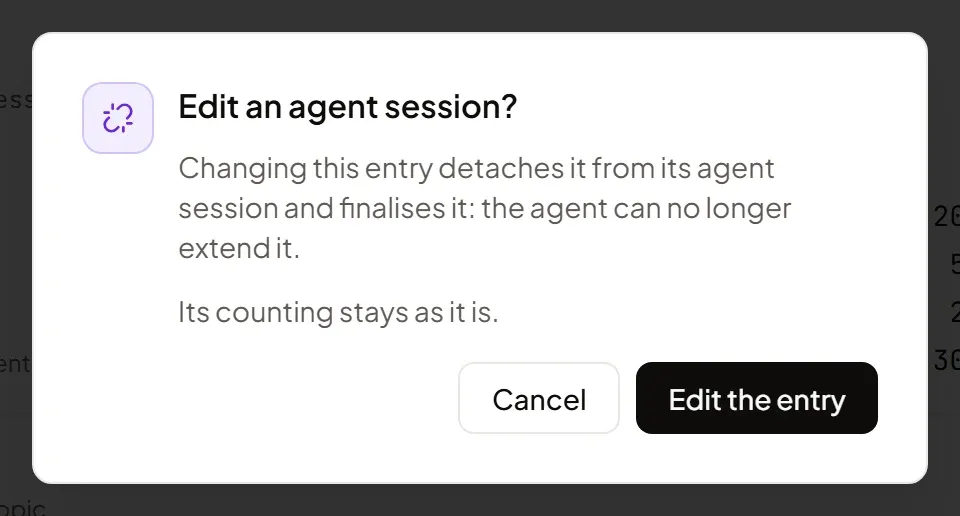
Splitting an agent session is refused: the second half would become human time. So is duplicating it: the copy would be a counted web entry.
Counting rule
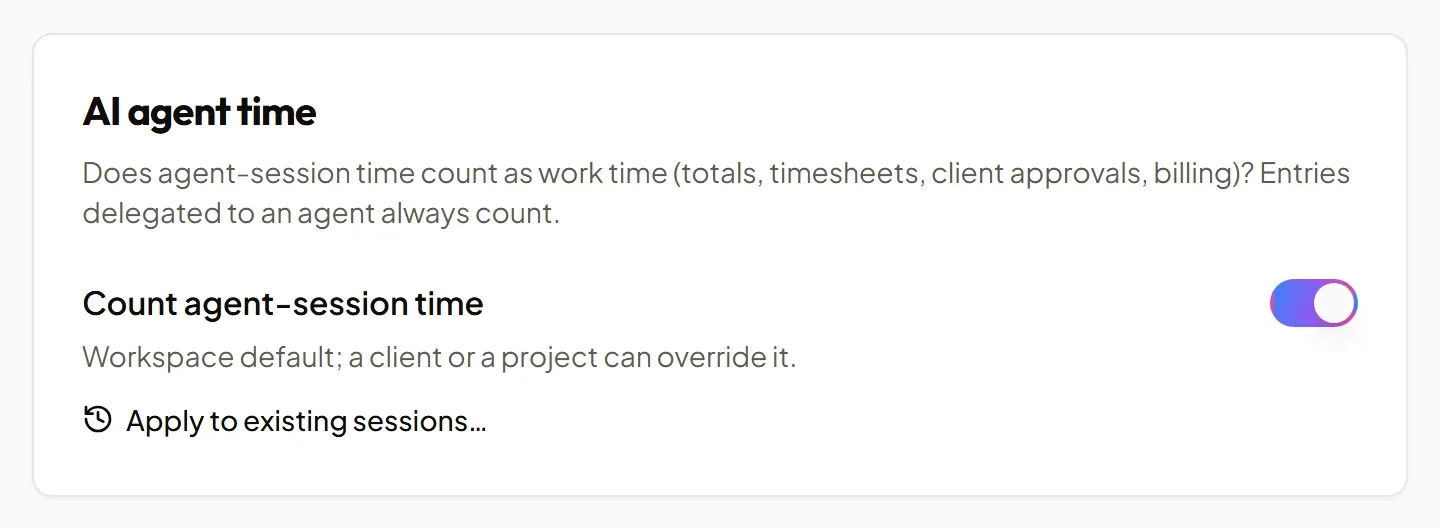
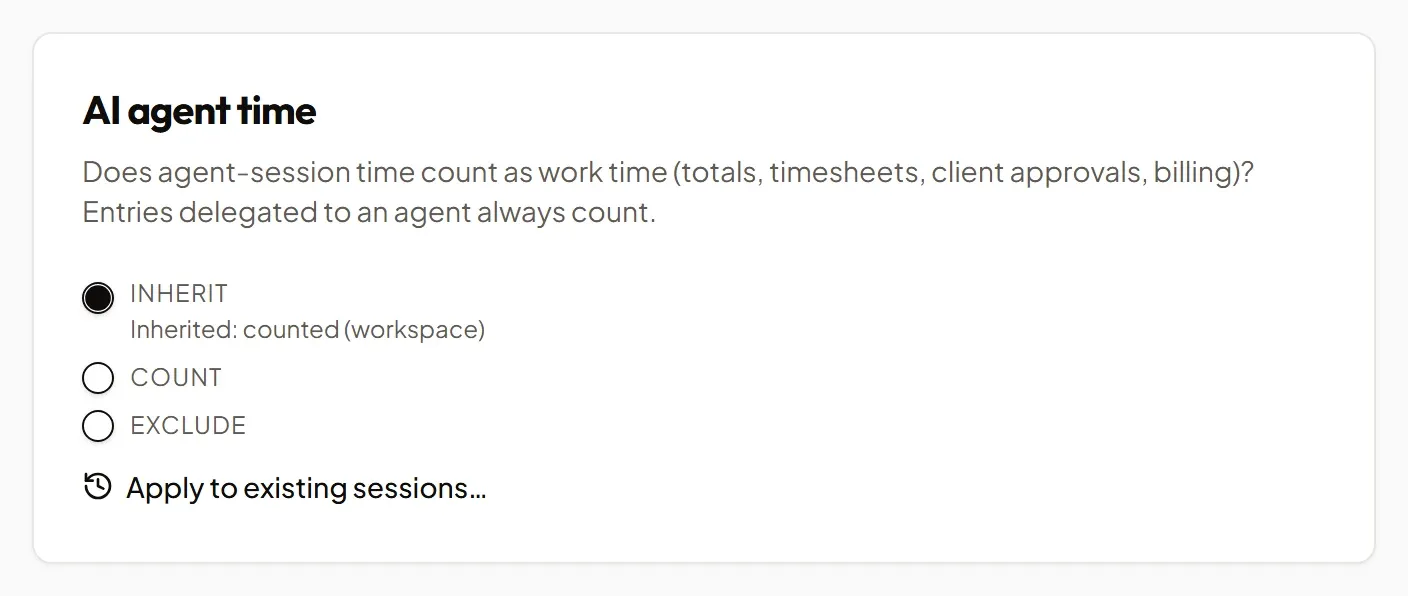
Section titled “Counting rule”Does agent session time count as work time (totals, timesheets, client validations, billing)? Delegated entries always count. The rule is set at each level, from the most general to the most specific: workspace › client › project; a client or project can inherit, count or exclude. By default the workspace does not count session time: an Owner or Admin turns counting on with the cards below.
-
Workspace: the AI agent time card in Settings → Timesheet validation.
-
Client: the Billing tab of the client page.
-
Project: the Billing tab of the project page.
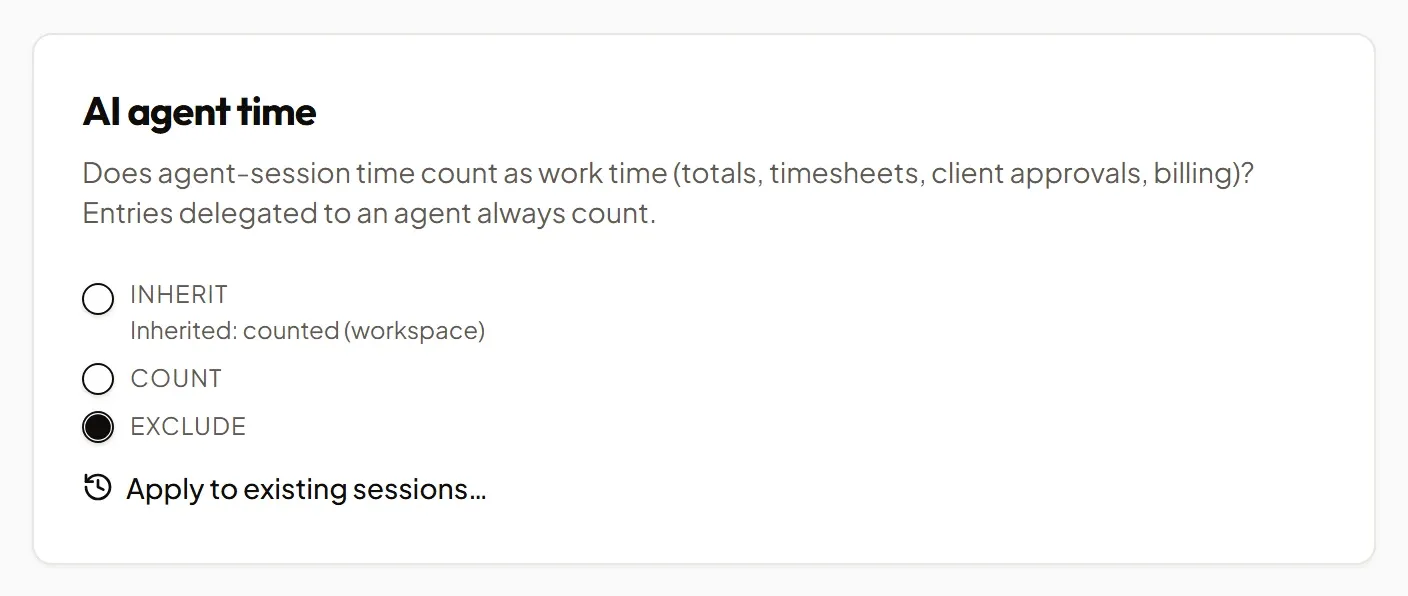
Only Owners and Admins see these cards and can change them.
Changing the rule applies to new sessions. For existing unlocked sessions, Re-apply first shows a preview of what would change (and of entries blocked by a submitted period); you then confirm. The shortcut is available from the rule cards and from the client and project pages.
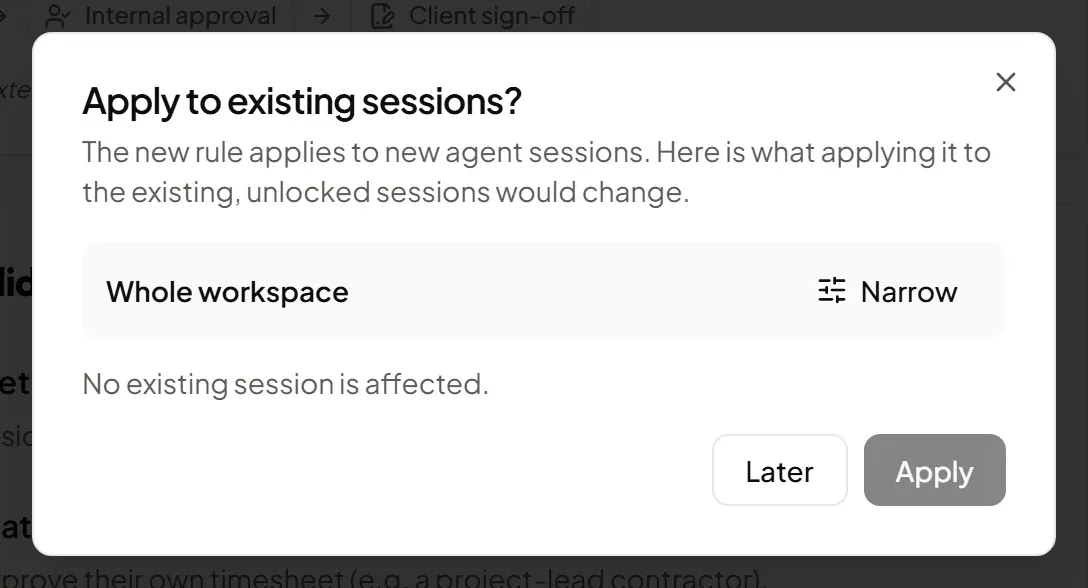
The Narrow button limits the preview to one client, one project, the sessions without a project or a period (UTC days, inclusive), useful when the workspace holds many sessions.
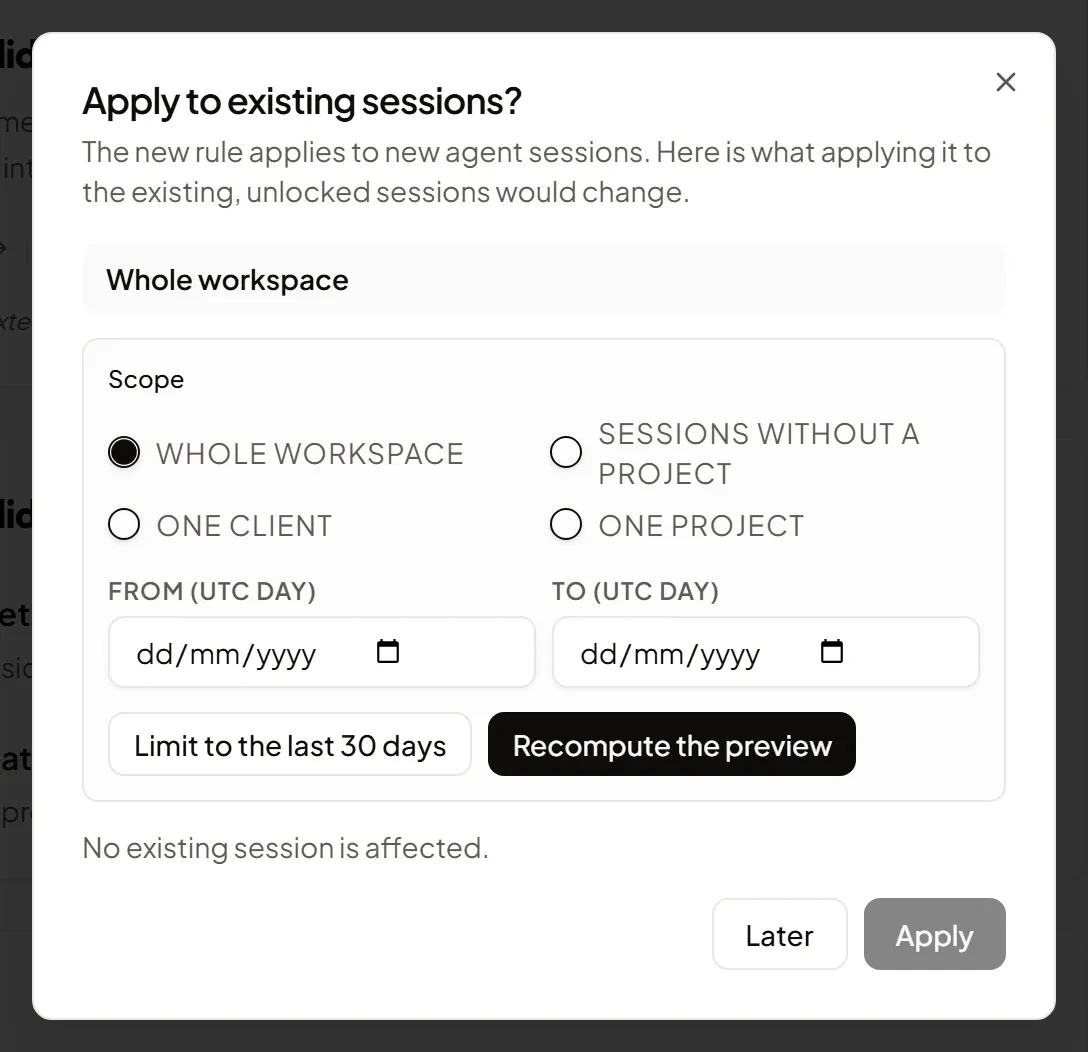
Sessions of an already submitted (locked) period are never changed; the preview lists them as blocked.
The “AI activity” dashboard card
Section titled “The “AI activity” dashboard card”On the Dashboard, the AI activity card summarises the period: session time, delegated entries, tokens per model and top projects. It only appears when there is agent activity. See details opens the Reports AI agents tab. It adds up session periods and delegated entries: it is not exclusive human time.
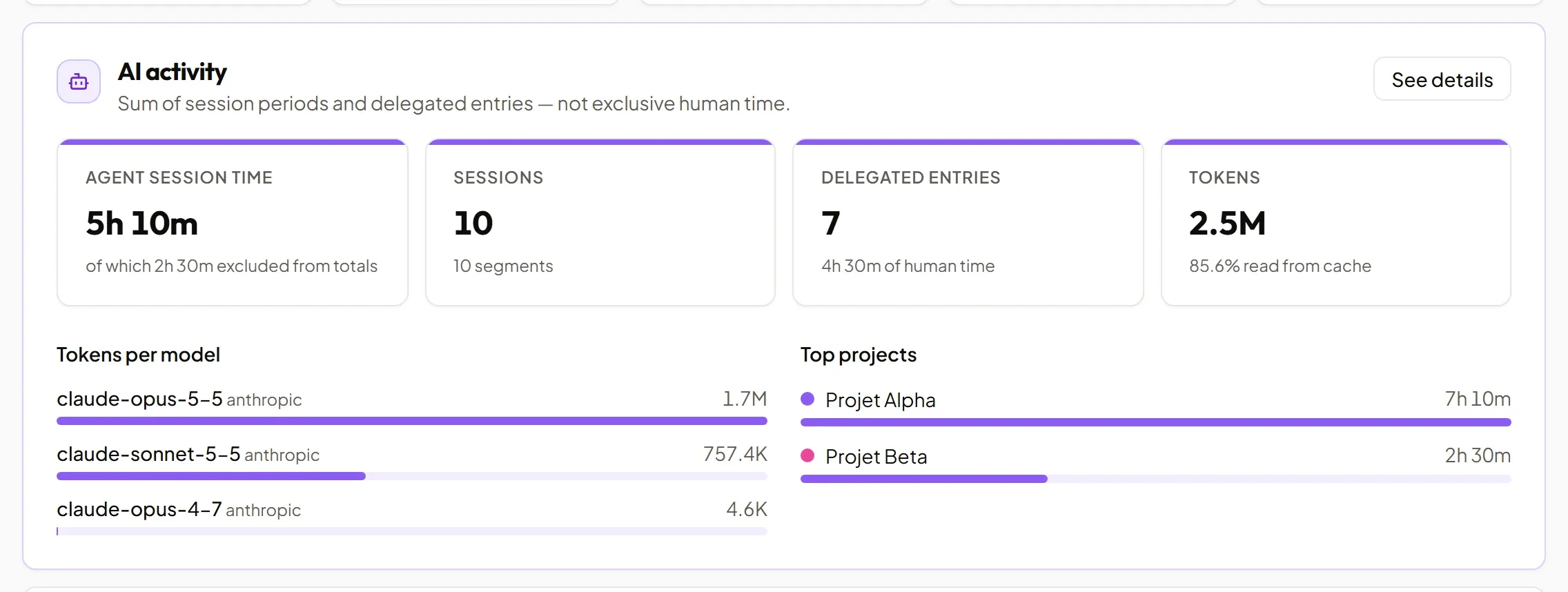
The dashboard’s Total hours and following indicators only count work time: “excluded from totals” session time is not in them, but the card mentions it (“of which … excluded from totals”).
The Reports “AI agents” tab
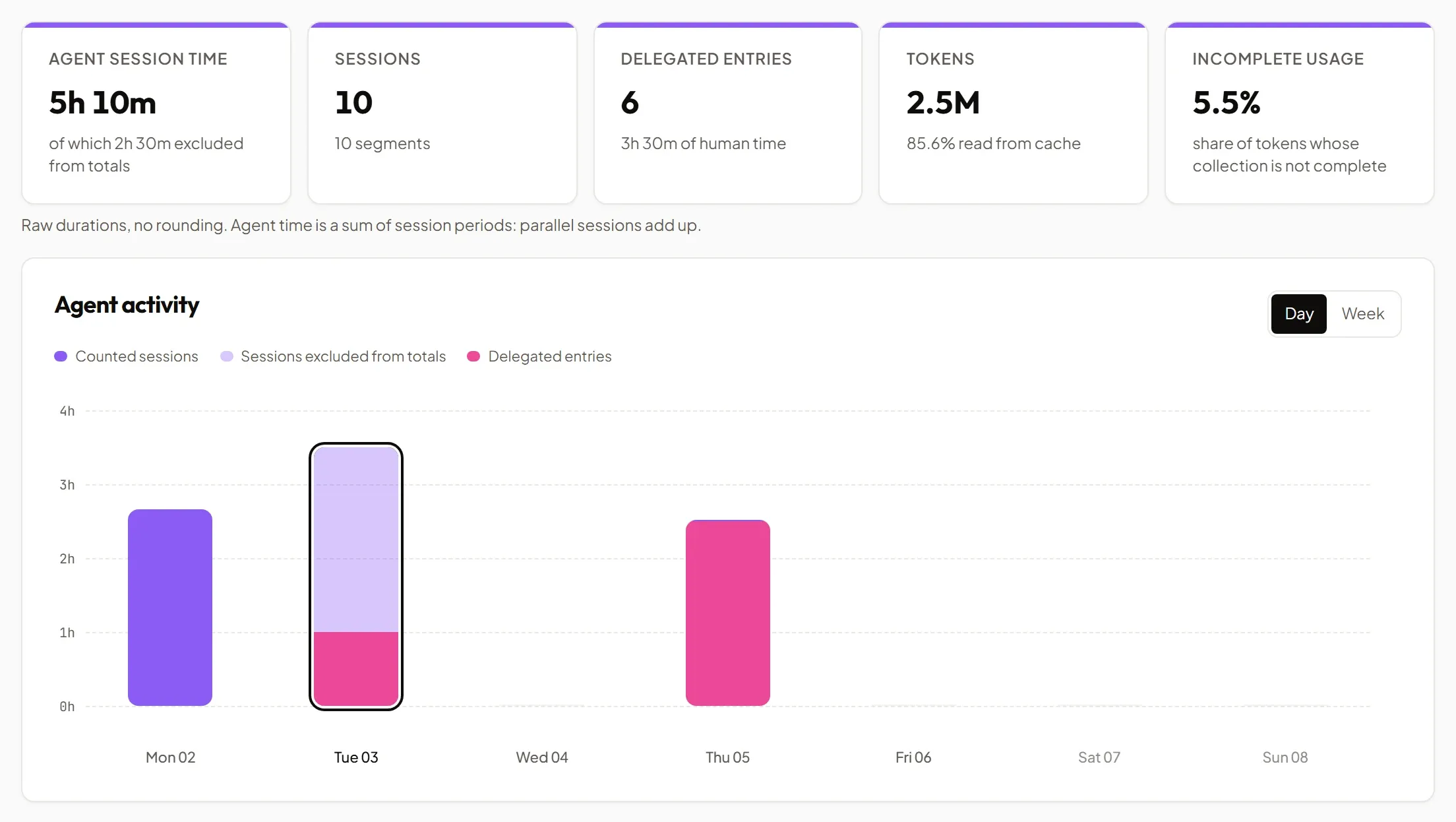
Section titled “The Reports “AI agents” tab”Reports → AI agents shows:
- indicators (session time of which excluded, sessions, delegated entries, tokens of which read from cache, incomplete usage);
- a series per day or per week;
- a breakdown by agent, project, client, member, model or provider;
- the sessions list (“Show more” for the rest), expandable, with their collection quality.
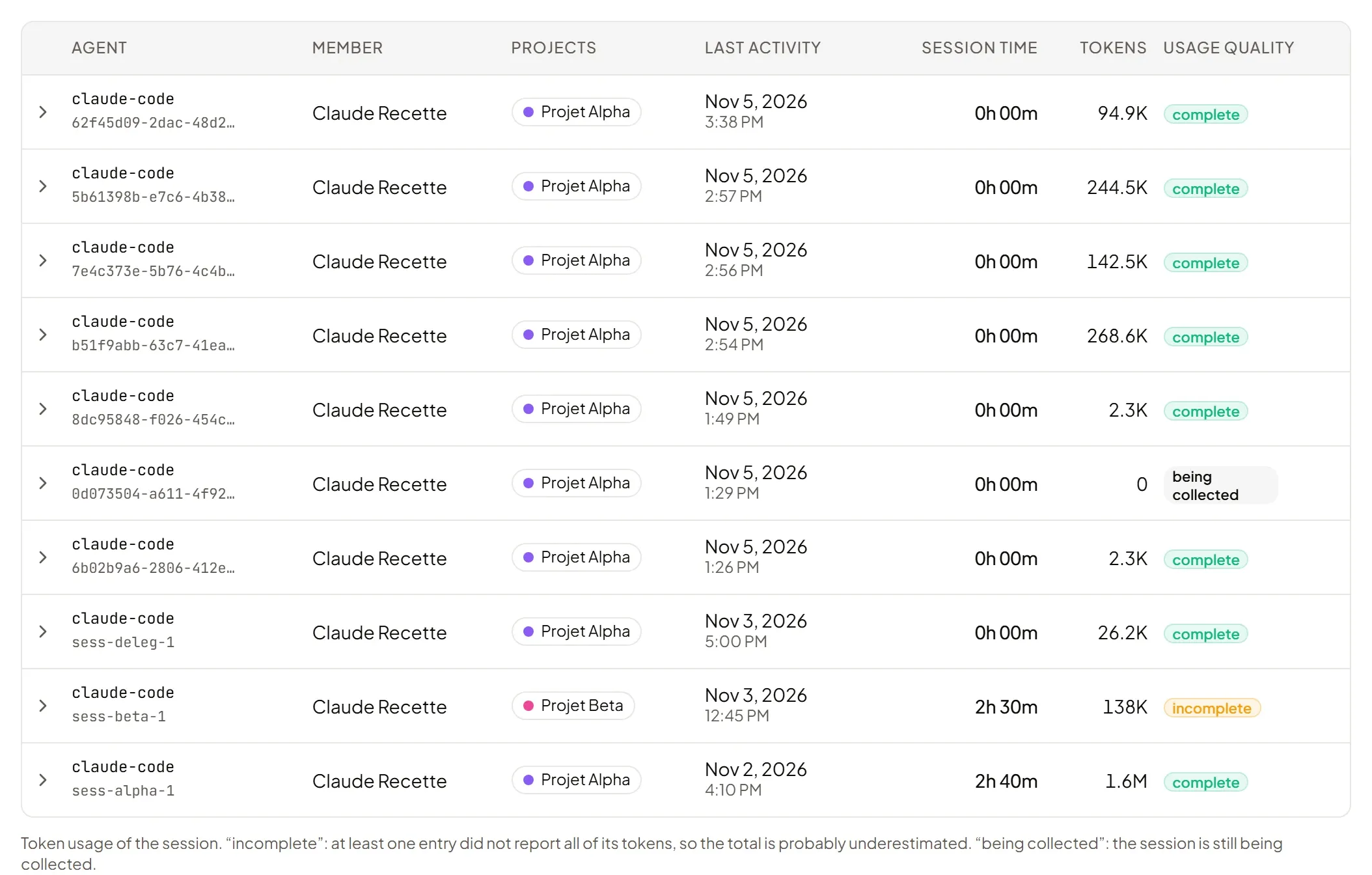
Good to know:
- Durations are raw, unrounded. Agent time is a sum of session periods: parallel sessions add up.
- Models and providers have no duration: one entry can use several.
- Quality tells how token collection went: pending, complete or incomplete.
- The Export Excel button exports, as XLSX, the agent entries matching the tab’s filters (agent columns included). It is disabled when the origin filter excludes agents.
- The period is limited to 366 days.
Client documents: merged or split
Section titled “Client documents: merged or split”In timesheets signed by the client (see Timesheet validation), counted agent time can be:
- Merged — included in totals without distinction;
- Split — an “of which agent” column shows its share.
The mode is set at three levels: the workspace default (Settings → Timesheet validation), a per-client override (the client page’s Validations tab, hidden when timesheet validation is off), then the choice when sending the signature request. The two display cards (workspace default and client override) are shown to Owners and Admins only. You can also tick Include the AI usage annex: tokens per model and per project, never durations.
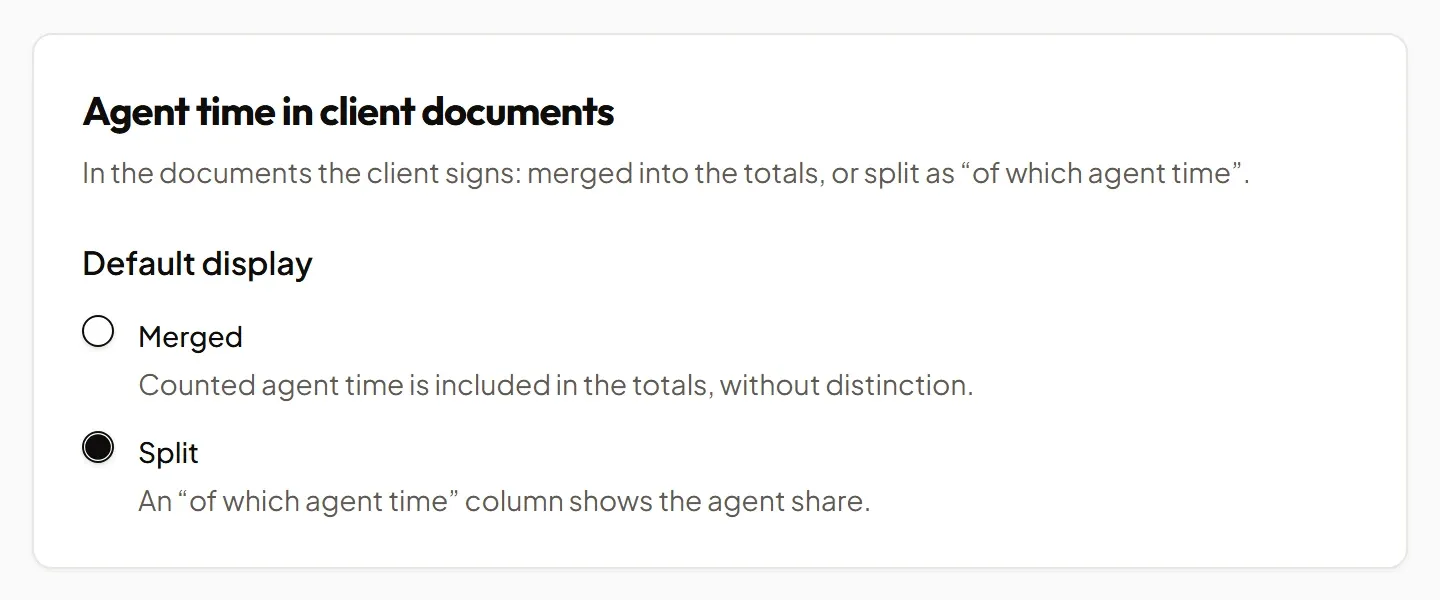
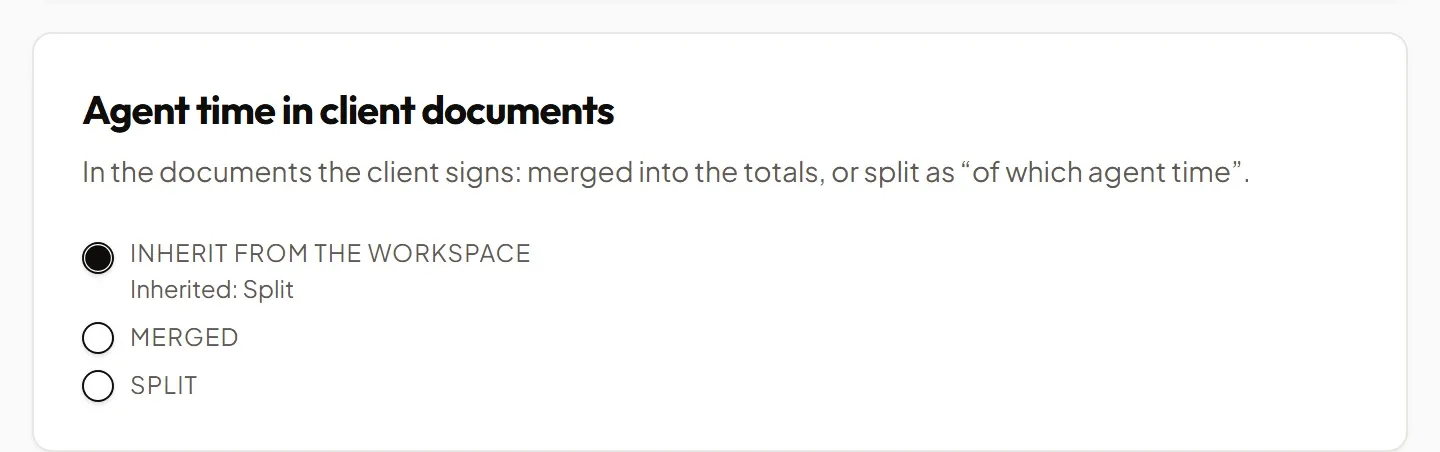
When sending, the Send a validation request window offers the display mode (preselected from the client, then the workspace) and the Include the AI usage annex box.
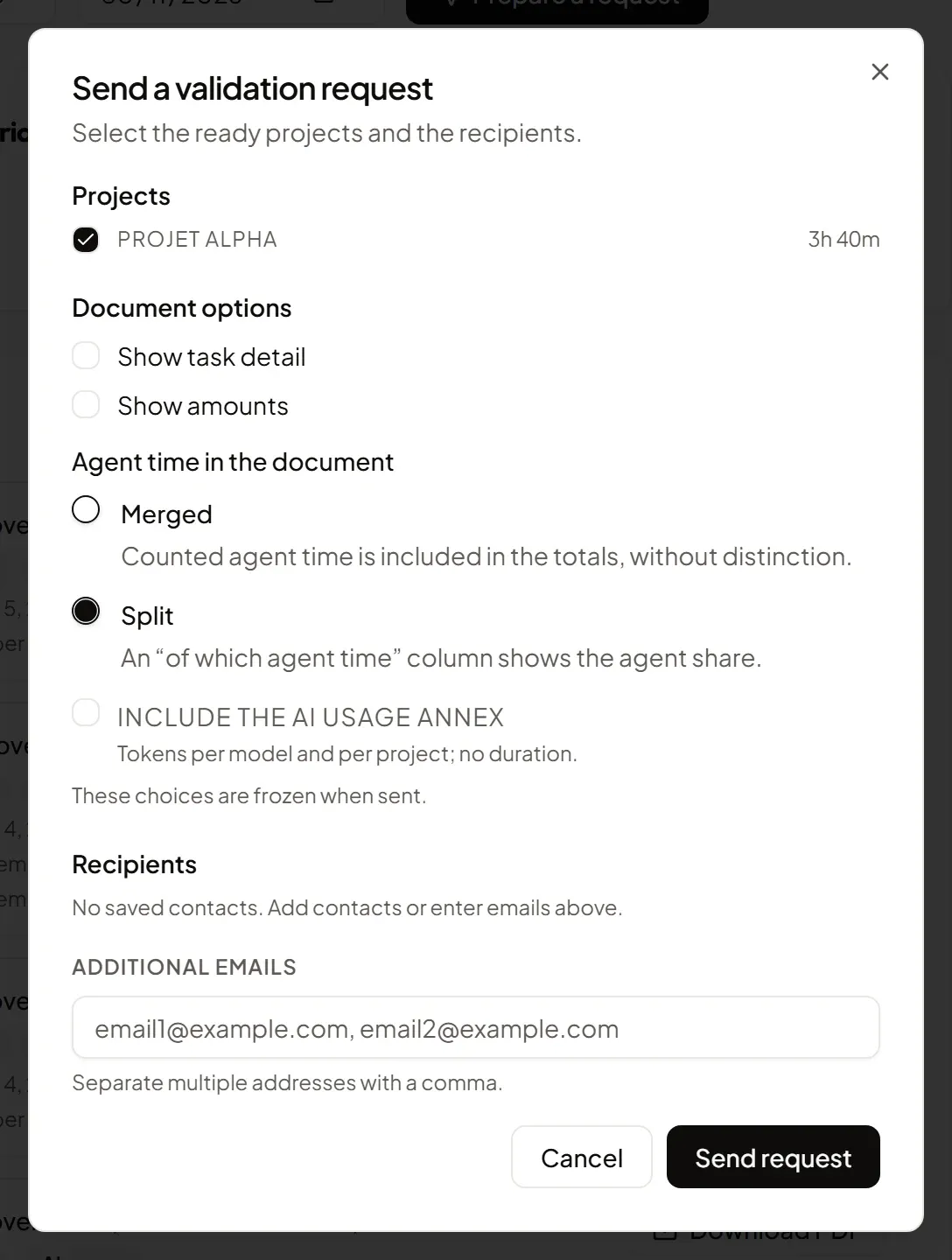
These choices are frozen at send: changing a setting afterwards does not alter a document already sent. The request history on the client page recalls them (“Agent time split”, “AI annex”) and offers the signed PDF to download.
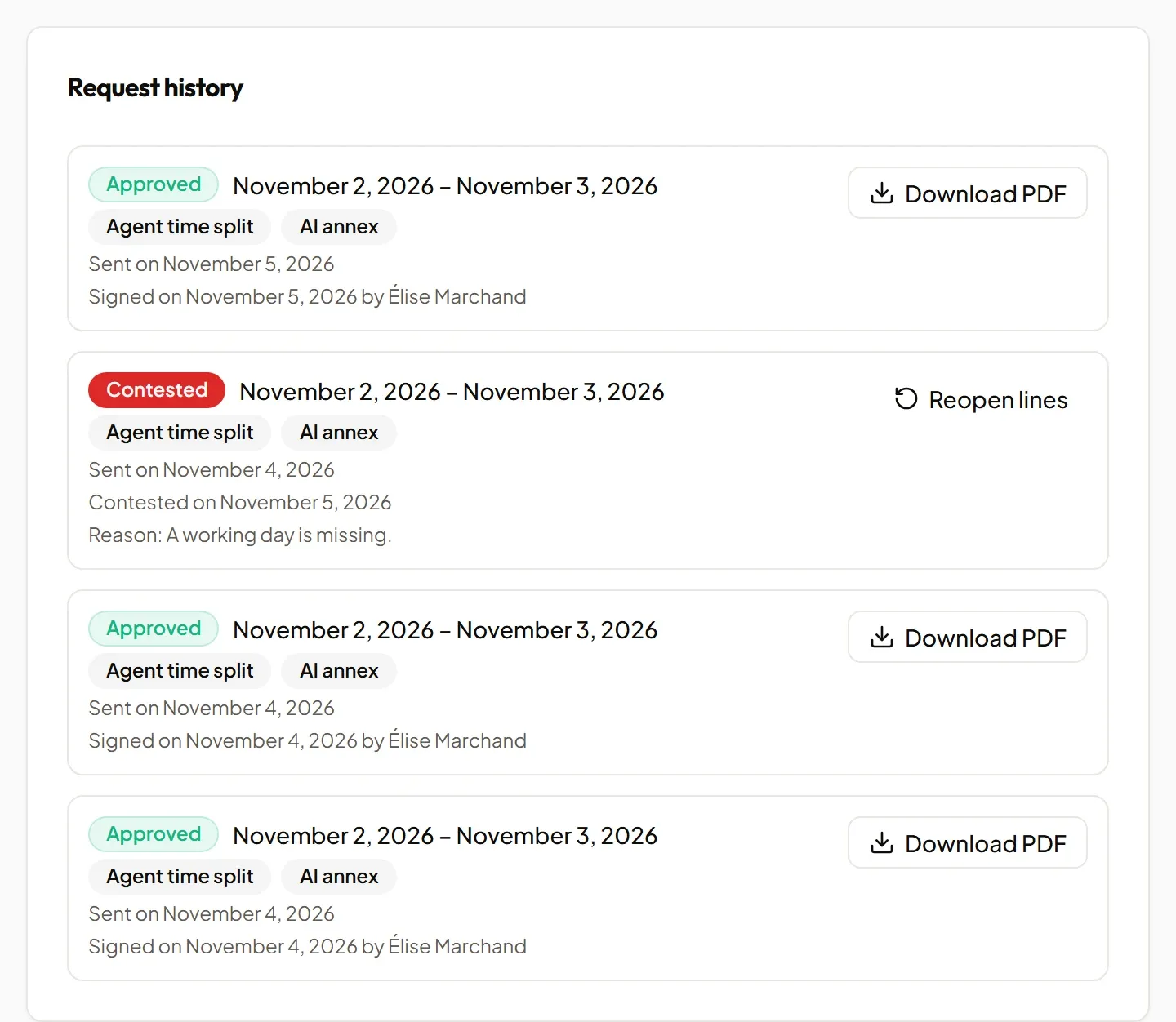
In Split mode, the PDF and the signature page add an “of which agent” column; with the annex, a final section lists tokens per model and per project (rows whose collection was incomplete are starred). A document sent before these options existed stays identical.
Privacy
Section titled “Privacy”The plugin sends Tickr no prompt, file or branch content: only activity metadata (agent, model, times, token volumes).